This free LinkedIn outreach tracker shows which campaign is winning a test, and when you have enough data to say so. Use it to compare ideal customer profiles (ICPs) and angles. An ICP is the kind of company and person you sell to. An angle is the reason you give that person to talk.
The tracker turns a running test into one page you read once a week. It shows which cells are ahead and whether each comparison has enough data to judge. It also gives you a place to record what you'll do about it.
It's an Excel file that Google Sheets and Numbers can also open. It works with any outreach tool, or none, because it only needs counts.
It follows the method in our guide on how to A/B test LinkedIn outreach. You don't need to read the guide first, but it explains why the tracker works the way it does.
What the tracker does, and what it leaves out
The tracker is for deciding, not reporting. On the Setup tab you define two main things. A cell is one ICP plus one angle, run as its own campaign. A comparison pits two cells that differ in one thing, the ICP or the angle.
Each Weekly log row holds five counts: invites sent, accepted, replied, positive replies and calls held. Everything else is calculated. You get rates per cell, and for each comparison the gap, progress toward the planned sample, and a status: "Too early" or "Ready to decide".
It isn't a lead list. It doesn't track individual prospects or follow-ups; keep those in your outreach tool.
It also leaves out profile views, post likes, messages sent and total actions. Those numbers describe activity, and they always go up. A sheet full of rising numbers makes it easy to call a winner too early.
Before you start
You need three things in place before the tracker is useful.
- Defined cells. Each cell is one ICP with one angle, run as its own campaign with the same settings as the others. A two-by-two test has four cells.
- A maturity window. People take days to accept and longer to reply. The template counts an invite once its send week ended at least 14 days ago.
- Calls logged by lead. When a call happens, note the lead, the date and the cell. Otherwise calls can't be matched to the cell that produced them.
The tracker works for any number of senders. Each sender gets their own rows, so you can see later whether one profile is carrying a cell.
How to use the tracker in five steps
Step 1: List your cells and comparisons on the Setup tab
Type one row per cell: its name, the ICP, the angle and a one-line hypothesis. Name cells "ICP – angle", such as "RevOps – cost", and use the same names as your campaigns.
Then add one row per comparison. Pick cell A and cell B, so that they differ in one thing only. Choose the number that decides it: acceptance, replies, positive replies or calls.
Enter a baseline rate and a target rate. For the baseline, use the rate your recent campaigns get. For the target, pick the smallest gain that would change what you do. The smaller the gap, the more invites you need.
The sheet works out the invites each cell needs before that comparison can be decided. It uses a standard two-proportion sample size at 95% confidence and 80% power. In plain words, if the real gap is that big, the test spots it 4 times in 5. Chance alone raises a false alarm about 1 time in 20. Telling 27% acceptance from 37% needs 338 invites per cell. Telling 7.5% replies per invite from 11.5% needs 840.
One cell can sit in two comparisons. In a two-by-two test, "RevOps – cost" is compared with "CFO – cost" on acceptance and with "RevOps – speed" on replies. Each comparison has its own sample size and its own status.
Below the comparisons, list everyone whose profile sends.
Step 2: Log each send week as its own row
In the Weekly log, add one row per cell, per sender, per send week. Enter the Monday of the week the invites went out, then the number of invites sent.
A row is a cohort: the people invited that week. You'll keep updating its counts as answers come in. Don't add a new row for the same cohort next week; overwrite the counts.
This is what keeps the rates honest. A running total mixes last week's invites, which few people have answered yet, with invites from a month ago. The new invites drag every rate down.
Step 3: Update the counts every Monday
Once a week, on the same day, update each open row:
| Column | What to count | Notes |
|---|---|---|
| Invites sent | Connection requests sent that week, for that cell, from that sender | Fixed once the week is over |
| Accepted | Of those invites, how many have been accepted so far | Grows for a few weeks |
| Replied | Of those invites, how many people have replied to any message so far | Grows for longer |
| Positive replies | Replies that ask for a call or for more information | A judgment call, so agree the rule first |
| Calls held | Calls that took place with those people | Match each call to its lead and cell |
Count calls held, not calls booked. A booked call that doesn't happen isn't a result for that cell.
Many tools only show campaign totals. In that case, export the leads with their invite date, sender and status, then count them by send week. A pivot table in the same spreadsheet does the counting.
Step 4: Read the Readout tab
The Readout adds up matured rows only. A row counts as matured once its send week ended at least 14 days before the readout date. You can change the window and the readout date on the Setup tab.
The top half shows each cell's matured invites and its rates, all divided by those invites. The bottom half shows each comparison: the two rates, the gap in points, the invites needed, progress and a status.
A comparison says "Too early" until both of its cells reach the invites it needs. Then it says "Ready to decide". A comparison can show a big gap and still be "Too early", because one of its cells hasn't reached the invites it needs.
Calls take weeks, not days. If a comparison decides on calls, raise the window to 30 days or more, or treat calls as confirmation only.
Step 5: Check senders, then write the decision
Open the Sender check tab before you decide. It shows acceptance for every sender in every cell.
A sender a few points higher everywhere is normal. A well-connected profile lifts every cell equally, as long as each sender sends the same share of every cell. Be careful when one sender is far off in one cell only. Then that cell may be measuring a person, not an ICP or an angle.
"Ready to decide" means there's enough data to judge the gap. The status doesn't pick the winner for you. At that point, compare the gap with the one you planned for: the distance between the baseline and target rates on Setup.
- The gap is at least as big as planned, and holds: stop the weaker cell and move its invites. For an ICP comparison, "holds" also means within mutual-connection bands. A band is a group of leads with similar numbers of shared connections: none, one to five, or six or more. If the gap vanishes in most bands, it comes from who knows whom, not the ICP. Keep both cells and compare again at the next readout. A band that bounces a little isn't a failure.
- The gap is a bit smaller than planned, about 70% of it or more: if you planned for 10 points, that's 7 to 10. The difference is probably real, just smaller than you hoped. Choose on cost and ease, or keep both running another round.
- The gap is under about 70% of planned: treat the two cells as a tie. Keep whichever is easier to run, and test something else next.
Then decide, with whoever writes the messages, and type the decision next to the comparison. Write the reason too, so the next round starts from a record, not a memory.
Example: a filled-in readout
The template ships with an example. It's a two-by-two test: heads of RevOps against CFOs, each with a cost angle and a speed angle. Three people send about 125 invites a week each, spread across the four cells. That's an example pace, not a recommendation. LinkedIn limits invitations but doesn't publish a weekly number (LinkedIn Help, retrieved 2026-10-27). The rates are made-up examples, not anyone's real results.
At the readout on 26 October, five send weeks have matured, 7 September to 5 October. Each cell has 462 matured invites.
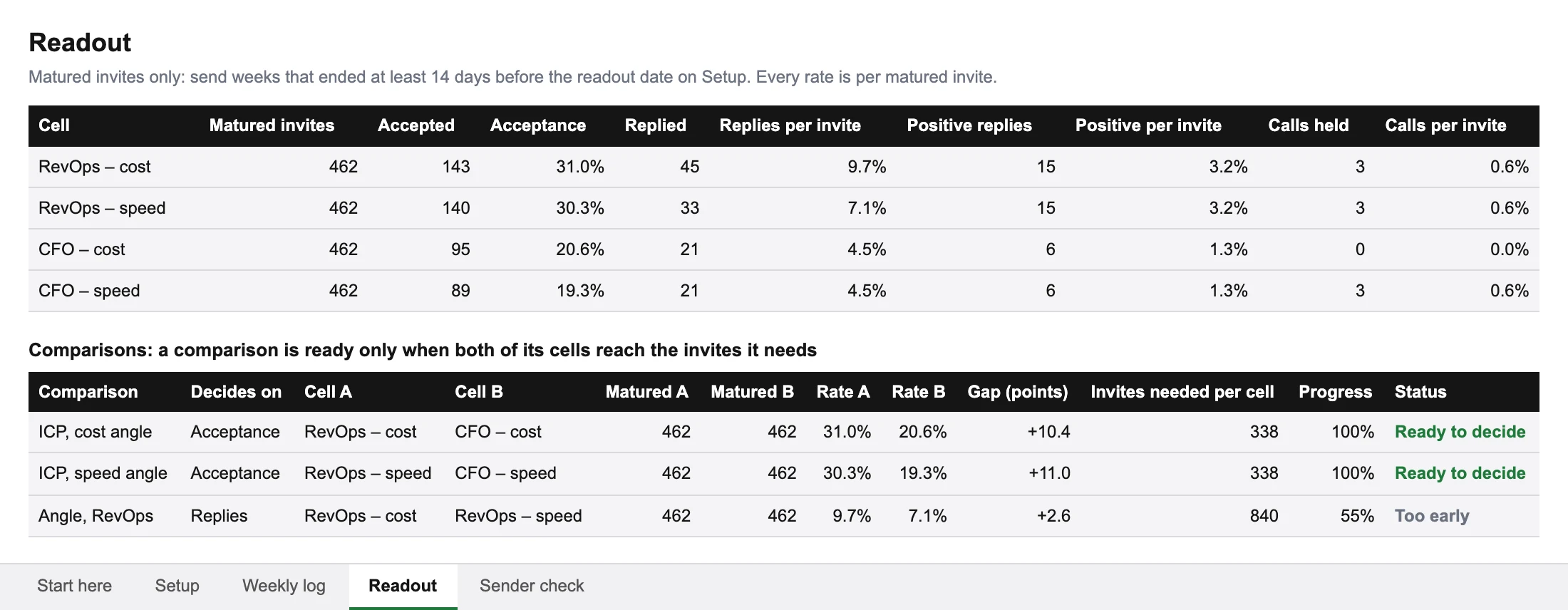
| Comparison | Decides on | Cell A vs cell B | Rates | Gap | Needed per cell | Status |
|---|---|---|---|---|---|---|
| ICP, cost angle | Acceptance | RevOps – cost vs CFO – cost | 31.0% (143 of 462) vs 20.6% (95 of 462) | 10.4 points | 338 | Ready to decide |
| ICP, speed angle | Acceptance | RevOps – speed vs CFO – speed | 30.3% (140 of 462) vs 19.3% (89 of 462) | 11.0 points | 338 | Ready to decide |
| Angle, RevOps | Replies per invite | RevOps – cost vs RevOps – speed | 9.7% (45 of 462) vs 7.1% (33 of 462) | 2.6 points | 840 | Too early |
Here's how the team reads it:
- Both ICP comparisons are ready. Each cell passed its 338 invites. The CFO cells trail by 10 to 11 points in both angles, at least the 10 points planned. The team checks that the gap holds among leads with similar mutual connections. That check happens outside the sheet; our A/B testing guide explains it. The gap holds, so the team stops both CFO cells.
- The angle comparison isn't ready. It decides on replies, so both RevOps cells need 840 matured invites. They have 462 each, so it stays "Too early", even though cost looks ahead by 2.6 points. At this pace both cells pass 840 at the 30 November readout, or 23 November if the CFO invites move to these cells. New invites take about three weeks to show up in the readout.
- Calls can't separate the cells yet. Calls of 3, 3, 0 and 3 on 462 invites each are noise. Telling 1% calls per invite from 2% would need about 2,300 invites per cell.
Some comparisons can't reach their sample in a reasonable time. Then plan for a bigger gap, or decide on a more frequent outcome, such as acceptance instead of replies.
The Sender check shows one sender about three points above the other two, in every cell. Each sender sends the same share of every cell, so that lifts all four equally and doesn't change the decision.
Five mistakes the tracker is built to prevent
- Reading rates on unanswered invites. Last week's invites haven't had time to be fully accepted. The matured filter keeps them out.
- Percentages without denominators. "30% acceptance" means little without "of 462 invites". The Readout shows the count next to every rate.
- Deciding before the planned sample. A comparison that looks clear after 100 invites per cell often isn't. Its status says "Too early" until both cells reach the sample.
- One sender carrying a cell. If one profile sends most of a cell's invites, the cell partly measures that person. The Sender check shows it.
- Logging activity as results. Views, likes and messages sent always rise. They're left out on purpose.
Frequently asked questions
Does the tracker work with any outreach tool?
Yes. It needs five counts per cell, sender and send week, which you can take from a lead export (see Step 3) or count by hand.
Why wait 14 days before an invite counts?
Acceptances and replies keep arriving for days after an invite goes out. Counting fresh invites makes every cell look worse than it is. Fourteen days is a reasonable default; 30 days is stricter, and better for calls. Use the same window for every cell.
Does it work in Google Sheets and Numbers?
The file is an Excel workbook, and Google Sheets and Numbers can open it. It uses only basic functions that all three support: SUMIFS, IF, IFERROR, AND, OR, MIN and ROUNDUP. Dropdowns and color highlights may look different in Numbers. We checked the formulas with an Excel formula engine, not in every app. After you open it, check that the example readout matches the table in this guide.
How the sample sizes are calculated
The Setup tab uses the normal approximation for comparing two independent proportions. The invites needed per cell are (1.96 + 0.84)² × [p₁(1 − p₁) + p₂(1 − p₂)] ÷ (p₁ − p₂)², rounded up. Here p₁ is the baseline rate and p₂ the target rate. The constants 1.96 and 0.84 set 95% confidence, two-sided, and 80% power.
It's a standard formula for comparing two proportions (Select Statistical Consultants, "Comparing Two Proportions – Sample Size", retrieved 2026-10-27). The sheet uses 7.849, the square of the unrounded constants (1.95996 + 0.84162). With the rounded 7.84, the replies example gives 839 instead of 840.
The approximation needs at least five successes and five failures in each group (OpenStax, Introductory Statistics 2e, section 10.3, retrieved 2026-10-27). The test itself is the standard two-proportion test (NIST/SEMATECH e-Handbook of Statistical Methods, section 7.3.3, retrieved 2026-10-27).
At the planned sample, a gap of about 70% of the planned one (1.96 ÷ 2.80) already clears 95% confidence. That's where the "bit smaller than planned" rule in Step 5 comes from.
All rates in this guide and in the template's example are made-up examples, not measurements.
Sources
- Types of restrictions for sending invitations, LinkedIn Help: LinkedIn limits invitations without publishing a weekly number.
- Comparing Two Proportions – Sample Size, Select Statistical Consultants: the sample-size formula.
- How can we determine whether two processes produce the same proportion of defectives?, NIST/SEMATECH e-Handbook, section 7.3.3: the two-proportion test.
- Comparing two independent population proportions, OpenStax: conditions for the approximation.
- User Agreement, LinkedIn, section 8.2, effective 3 Nov 2025: the ban on bots and unauthorized automated methods.
All sources were last checked on 2026-10-27.
About this guide
This guide and the template were made by the Relinta team. We make Relinta, a tool for running LinkedIn outreach across several sender profiles. You can reach us at support@relinta.com.
Drafted with AI help, then checked and edited by the Relinta team. LinkedIn's User Agreement prohibits automated activity. Any account used with Relinta can be restricted.